Workflow & tips
How to Save Effects Presets in Final Cut Pro
Save a clip's effects, settings and keyframes as a preset you can reuse from the Effects browser. Works for audio too.
In this post
Quick answer
To save an effects preset in Final Cut Pro, apply and adjust the effects on a clip, select it, then choose File > Save Video Effects Preset (or click Save Effects Preset at the bottom of the Video inspector). Name the preset, choose an Effects browser category and what to include, then click Save. It appears in the Effects browser and works like any other effect.
Since Final Cut Pro 10.2, released in 2015, you can save a clip's effects, settings and keyframes as a preset and use it again on any clip. Before that, the only option was to copy and paste them from one clip to another with the Paste Effects and Paste Attributes commands, which still work well for one-off jobs. You can read about them in our guide to copying and pasting effects between clips.
How to save an effects preset in Final Cut Pro
- Set up a clip exactly how you want other clips to look in the future. You can save the effects you have applied, your inspector settings and keyframes, so think of everything.
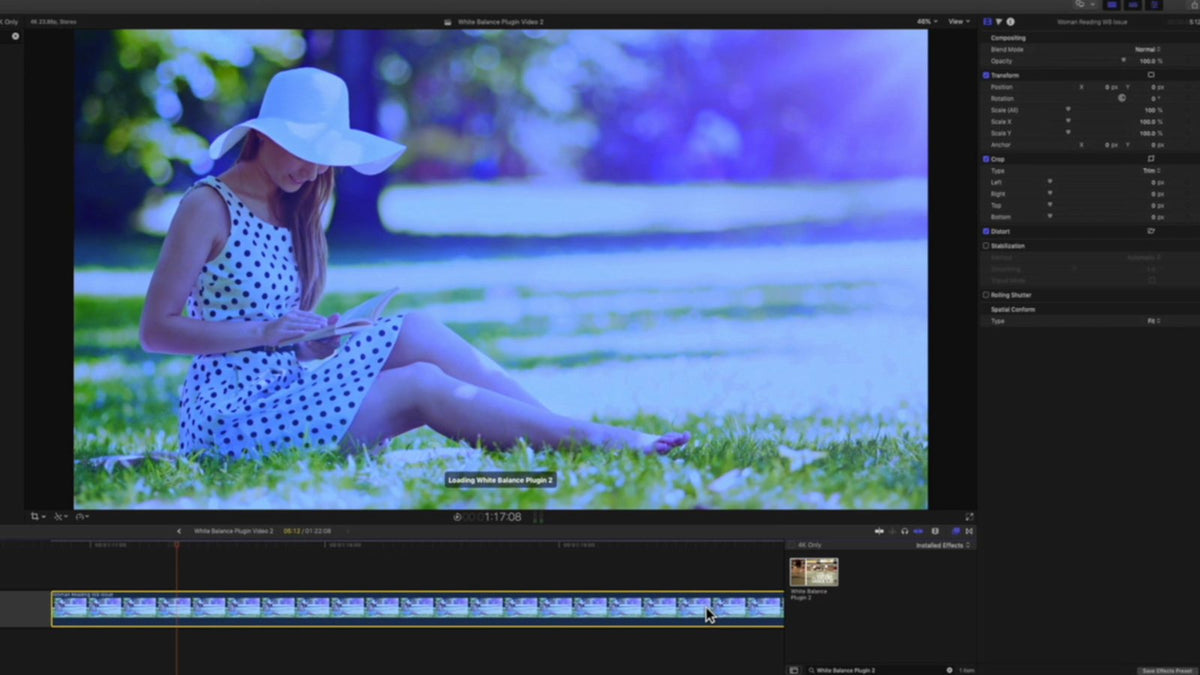
- Select the clip, then click Save Effects Preset at the bottom of the Video inspector. You can also choose File > Save Video Effects Preset.
- In the Save Video Effects Preset window, give your preset a memorable name and choose a category from the Category menu, or choose New Category to create your own. In the Attributes list, check everything you want to include, such as Effects, Transform, Crop and Distort. If your clip has keyframes, set Keyframe Timing to Maintain Timing or Stretch to Fit.
- Click Save. Your preset now appears in the Effects browser, in the category you chose (01 Custom Presets in our example).


Apply, find and delete a preset
To use a preset, open the Effects browser (click the Effects button at the top right of the timeline, or press Command-5), open the category you chose, and drag the preset onto a clip. You can also select one or more clips and double-click the preset.
To delete a preset, Control-click it in the Effects browser, choose Reveal in Finder, and drag the preset file to the Trash. If it still shows in the Effects browser, quit and reopen Final Cut Pro.
Save an audio effects preset
This works for audio too, so you can keep your favorite audio settings. Select a clip with audio, then choose File > Save Audio Effects Preset, or open the Audio inspector and click Save Effects Preset at the bottom. The steps are the same as for video.
Share presets with another editor
Control-click a preset in the Effects browser and choose Reveal in Finder. Compress the preset file and send it to your friend or colleague. On their Mac, they drag it into the ProApps > Effects Presets folder inside their Library folder (hold the Option key and choose Go > Library in the Finder to find it), then quit and reopen Final Cut Pro if it is open.
Presets work well for animation too. Our keyframes tutorial shows how to build the moves you might want to save.
FAQ
How do I save an effects preset in Final Cut Pro?
Apply and adjust your effects on a clip, select the clip, then choose File > Save Video Effects Preset, or click Save Effects Preset at the bottom of the Video inspector. Name the preset, choose an Effects browser category, choose what to include, and click Save.
Where do my saved effects presets go?
They appear in the Effects browser, in the category you chose when you saved them, and you apply them like any other effect. The preset files are stored in the ProApps > Effects Presets folder inside your Mac's Library folder.
Can an effects preset include keyframes?
Yes. If the clip has keyframes, choose Maintain Timing to keep the spacing between keyframes the same, or Stretch to Fit to adjust them to the length of any clip you apply the preset to.
Can I save audio settings as a preset too?
Yes. Select a clip with audio, then choose File > Save Audio Effects Preset, or open the Audio inspector and click Save Effects Preset at the bottom. The steps are the same as for video.
Saved presets make repeat work quick, and Keyframe Replacer does the same for animation: it has over 100 presets for position, rotation and scale, and you can save your own. It's also in the MEGA BUNDLE, which has all of our plugins (over 80) for $80, so you can try other effects towards your next project too.