Auto Mask
How to Smooth Skin in Final Cut Pro (Natural, Not Plastic)
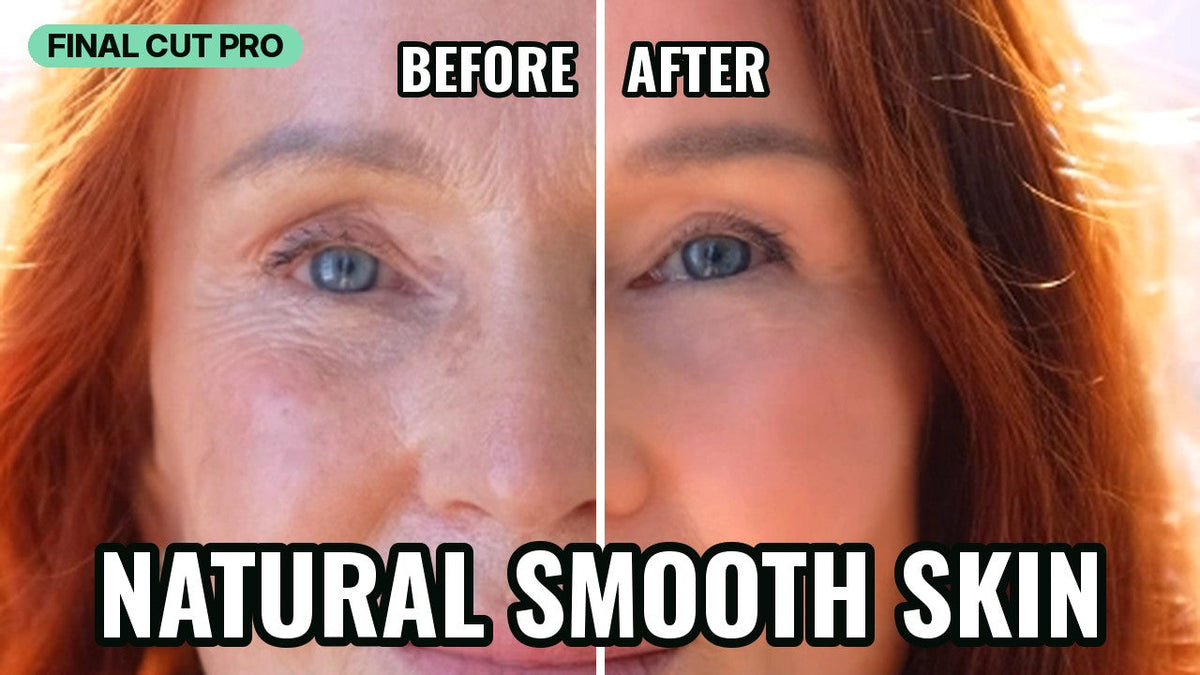
Smooth skin in Final Cut Pro without the plastic look: set Better Quality, add Skin Smoother, use Auto Mask > Skin so the eyes stay sharp, keep Skin Smoothing low, and finish with small Brightness, Contrast and Saturation tweaks.
In this post
Quick answer: To smooth skin in Final Cut Pro without the plastic look, set the viewer to Better Quality, drag Skin Smoother onto your clip, and use Auto Mask > Skin so only skin is affected. Then raise Skin Smoothing just until blemishes soften, and finish with small Brightness, Contrast and Saturation tweaks. The video below shows every step in under a minute.
Why skin smoothing looks fake
It usually comes down to two things: smoothing the whole frame, and smoothing too much. Blur the whole shot and the eyes, eyebrows, lips and hair go soft along with the skin, which gives the face an airbrushed look. Push the amount too far and the pores disappear, and the skin starts to look waxy. The steps below avoid both.
Step-by-step: smooth skin with Skin Smoother
1. Set the viewer to Better Quality
In the View pop-up menu at the top right of the viewer, choose Better Quality. You need to see fine detail like pores and small lines to judge how much smoothing is enough, and the default playback quality can hide it.
2. Drag the effect onto your clip
Find Skin Smoother in the Effects browser and drag it onto your clip in the timeline. Select the clip so the effect's controls show in the Video inspector.
3. Auto Mask > Skin > Add Auto Mask
In the Inspector, click the mask icon (Add Auto Mask) to the right of the effect name and choose Auto Mask. Choose Skin, then click Add Auto Mask. Now the smoothing only applies to skin, so the eyes, hair and background stay sharp. Auto Mask is built into Final Cut Pro 12.3 and later.
4. Skin Smoothing: less is more
Raise Skin Smoothing slowly and stop as soon as blemishes and fine lines soften. If the face starts to look waxy or flat, back it off. A little smoothing looks like good lighting; a lot looks like a filter.
5. Brightness, Contrast and Saturation
Use Brightness, Contrast and Saturation in small amounts to finish the look. A touch of brightness can lift a face, and a small saturation change can bring back color that smoothing softened.
How to smooth skin without it looking fake or plastic
- Judge at 100%. Smoothing that looks fine in a small viewer can be too strong full screen.
- Keep some texture. Real skin has pores. If you can't see any, you've gone too far.
- Toggle the effect on and off. Comparing before and after keeps you honest about how much you've changed.
- Check the eyes and hairline. If they look soft, make sure the Auto Mask is set to Skin only.
- Copy settings to matching shots. Use Edit > Paste Attributes (Shift-Command-V) so every clip from the same setup looks consistent.
FAQ
How do I smooth skin in Final Cut Pro without blurring the eyes?
Limit the effect to skin with a mask. With Skin Smoother, choose Auto Mask, pick Skin and click Add Auto Mask. Eyes, eyebrows and hair aren't part of the skin mask, so they stay sharp.
How do I keep skin from looking plastic in Final Cut Pro?
Limit the effect to skin with Auto Mask > Skin, and keep Skin Smoothing low enough that you can still see pores. Smoothing the whole frame, or pushing the amount too high, is what gives skin that airbrushed look.
How much skin smoothing should I use?
As little as it takes for blemishes to soften. If the skin looks waxy, lower Skin Smoothing until texture comes back.
Does Skin Smoother work on Apple silicon?
Yes. It works with current versions of Final Cut Pro and macOS, on Intel Macs and natively on Apple silicon.
Get Skin Smoother
Skin Smoother is $20, pay once and it's yours, with a 30-day money-back guarantee.
Want everything? The MEGA BUNDLE includes all of our plugins (over 80) for $80, including Skin Smoother.